
AUTOMATE PLANET · RESTAURANT MENU GUIDE
How to keep your restaurant’s 86 list in sync with online orders
An 86 list tells staff what’s sold out. Have the shift lead mark the dish or add-on, location, and service window in the ordering system. Your online menu and AI assistant can read that record, recheck a guest’s cart before accepting it, and flag any accepted ticket the kitchen can’t fill.
The workflow at a glance.
- 1Kitchen calls a selloutConfirm which portions are spoken for
- 2Shift lead marks the menuMatch the item, location, and service window
- 3Guest chooses againCheck the cart before accepting the ticket
When the last two bowls are already spoken for
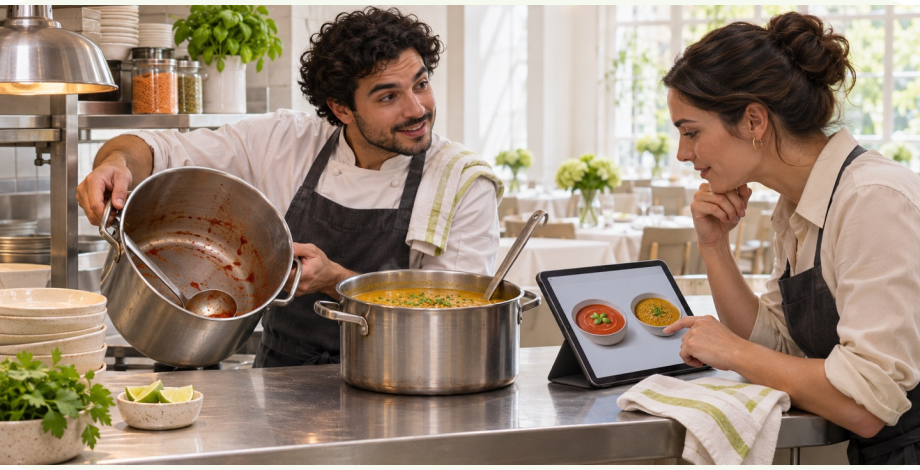
At the dinner rush, the cook calls “86 tomato soup.” The last two portions belong to tickets already hanging at the pass. A third guest still has tomato soup in an open pickup cart. The lentil soup is ready, and the restaurant across town still has both.
The cook knows what can leave the kitchen. The shift lead knows which location and menu to change. Give each a clear part in the handoff. Once the lead records the sellout, your website and AI assistant can tell the third guest what is available for their pickup time. The two tickets at the pass keep their place.
- The guest can pick a different dish before paying.
- The kitchen can see which accepted tickets, if any, need a conversation.
- The opening manager knows which items to check before the next service.
Choose where staff record a sellout
Choose the point-of-sale (POS) or ordering system where your shift leads already change the menu. Give one person per shift permission to update availability and name a backup. Ask the kitchen who can confirm that a dish can be served again. List each place a guest can order, including your own website, any marketplaces, and the counter.
For each dish, match the names guests say to the actual menu entries at each location. A cup of tomato soup and a bowl may have separate identifiers but come from the same batch. If the whole batch is gone, confirm both sizes. If you only ran out of takeout bowls, check the cup and dine-in options separately. For an unavailable garnish, check every dish that uses it and whether the kitchen can serve that dish without it.
Check what your system lets a connection do. For example, Square exposes a location-specific sold-out status for an item variation and a separate status for a modifier. Both fields are read-only through those interfaces. For that setup, staff mark the change in Square and a supported connection reads it for the website or assistant. Square’s variation reference and modifier reference.
A shift worksheet for each change to the 86 list
Copy these six prompts onto a shift sheet or into the menu manager. Complete one entry per sellout. Several sizes can share one entry if you list each one. The example below shows what the closing lead should be able to hand to the opener.
- What ran out? Record the kitchen name, guest-facing name, and affected items, sizes, or extras.
- Where and when? Record the location, local service date, and affected dine-in, pickup, or delivery windows.
- What is already promised? Check accepted tickets against portions set aside. Link any order that needs staff attention to its existing ticket.
- What can we offer? Ask the kitchen for an available alternative. Save the guest-facing wording and who approved it.
- Who checked each channel? Record the staff owner, time of the POS change, and time each relevant menu or assistant showed the correct choice. Assign a person to any channel still open.
- What reopens the item? Record the next review time, the cook who confirms stock, and the lead who restores and verifies ordering.
Downtown dinner pickup · tomato soup, cup and bowl. Two portions set aside for two accepted tickets. Pause new tomato soup orders. Lentil soup is available. Shift lead checks the website and chat now. Opening cook checks tomorrow’s batch before the opener restores it.
Handle the menu, an open cart, and the guest’s question
When a guest asks for soup, the assistant needs their location and intended pickup time. Have it look up the current menu record, show only confirmed alternatives, and let the guest choose. A useful reply is “Downtown has sold out of tomato soup for tonight. We have lentil soup. Would you like to see it?” A substitution that changes a dish or its price needs the guest’s approval. Route ingredient or allergy questions to the restaurant’s approved information and staff.
At order review, check availability again. If tomato soup sold out after the page opened, identify the affected line, keep the rest of the basket, and show the revised total after the guest makes a choice. When two guests try for the last portion at the same time, let the ordering system decide which order it can accept. Only show confirmation after it returns an accepted order reference. A chat reply or a refreshed menu alone cannot reserve a portion.
Give pending changes and existing tickets an owner
- An accepted ticket needs the missing dish. The shift lead checks portions set aside and assigns any shortfall to the person handling that order. Staff agree a replacement or other resolution with the guest and record it on the original ticket. Keep payments and refunds inside the restaurant’s approved process.
- One ordering channel still shows the dish. Mark that channel as pending, have its owner pause the affected option using the channel’s own controls, and verify the guest view. Keep a record of which channels still need checking.
- The assistant loses its connection. Let it answer general menu questions from approved content. For the affected dish, explain that staff need to confirm availability, or direct the guest to a working ordering channel. On reconnect, read the latest menu record before processing an older change.
- Tomorrow’s menu opens too early. Decide which items have a dependable replenishment time and which require a kitchen count. Square documents that a scheduled reset can allow orders for later pickup or delivery windows on its ordering profiles. Test those future windows separately. Square’s availability reset guidance.
Rehearse a dinner shift before switching it on
Three orders, three decisions
Use a test menu and test orders. Have the shift lead call each change while a second person tries the website and the assistant. Record the observed result, time, and responsible person beside each check.
- Mark both sizes of tomato soup out at Downtown. Check Downtown’s pickup menu and a request for a bowl in chat. Verify a second location can still offer its own stock.
- Run out of one optional topping. Check that guests can order the base dish. Then try a dish whose only required filling has sold out and make sure it cannot be confirmed.
- Leave the dish in a cart, change availability, and return to order review. The guest should see the affected line, keep the other dishes, and approve a revised total.
- With one portion available, try two test orders at once. Verify which ticket the ordering system accepted. Repeat with an already accepted ticket and check that staff can see and own any exception.
- Disconnect a test channel, restore it after a newer kitchen change, and check the older update cannot reopen the dish. Try a future pickup window, then verify the reopening decision from the guest side.
Start with one location and one menu
Bring a current menu with item and option IDs, the location’s ordering channels, the roles allowed to change availability, and a few recurring sellouts. Start with one shift lead, one location, and the restaurant’s direct order menu. Automate Planet can help map the kitchen’s wording to those entries, check the ordering connection, and design how an AI chat assistant answers availability questions.
Once that works for one shift, the next step could be voice inquiries using the same menu source, a second location with its own catalog, or an exception list for managers. Verify access and confirmation on each channel before adding it. Explore the restaurant ordering demo or review the restaurant packages to scope the first connection.
Measure where sold-out choices still get through
Pick comparable dinner shifts before and after the change. For each sellout, record when the lead entered it and when each channel reflected it. Compare the delay by channel. Count channels still awaiting a check separately so a missed update cannot appear as a fast one.
For guest impact, count accepted orders that needed a sold-out-item correction and divide by all accepted orders during those shifts. Track stale carts caught before acceptance separately. At the shift review, look at the tickets behind each count. A dish mapped to the wrong size needs a catalog correction. A correctly mapped dish that lingered on one marketplace needs a channel owner.
Common questions
What does “86” mean on a restaurant menu?
For the shift, staff use “86” to say a dish or option is unavailable. Put the exact item, location, affected window, and person responsible for reopening it on your 86 list.
Can the AI mark an item sold out on its own?
Put the kitchen decision and the menu change with authorized staff. The assistant can use the confirmed record to answer guests. The actions a connected system can perform depend on the specific POS interface and permissions.
How should we handle a sold-out add-on?
Mark the affected add-on unavailable for that location. A guest can still choose the base dish if the kitchen can prepare it. If every required choice is unavailable, hold the dish until staff approve a workable option.
What happens to an order the restaurant already accepted?
The shift lead checks the ticket against the portions set aside. If there is a shortfall, a staff member contacts the guest, agrees on a resolution, and records it on the existing order.
When should a sold-out dish go back online?
Use the restaurant’s approved reset policy for that item and service window. For an uncertain next batch, have the opening cook confirm what is ready, then let the shift lead reopen the item and check the guest-facing menu.
Can we start if our menu is updated by hand?
Yes. Use the shift worksheet with a named lead who updates and checks each channel. During scoping, identify which records a connection can read. Offer staff confirmation wherever a current record is unavailable.
Sources and editorial approach
- Square Developer documentation for item availability by variation and location
- Square Developer documentation for sold-out add-ons by location
- Square guidance on availability resets and future pickup windows
- Automate Planet restaurant services and packages
- Automate Planet restaurant ordering and assistant demo
How this page was prepared. AI-assisted writing based on our workflow design and the primary sources linked here. This is implementation guidance, not a report of a completed client deployment.
The worksheet and rehearsal are a proposed shift procedure. The provider references describe specific menu controls. Each restaurant’s permissions, ordering channels, and kitchen decisions determine what can be connected.
Build the first useful connection.
Tell us about your current process, the tools you use and the step that needs attention. We can help turn this guide into a scoped implementation plan.
Plan my restaurant’s sold-out menu workflowExplore industry packagesWhat would you like to make easier?
Choose the services you’re interested in. We’ll help you find the right next step for your business.